Setup Guide
Takes about 2 minutes
Install & Setup Walkthrough
Watch the full install flow from HubSpot Marketplace to configured automated backups
On This Page
Install from HubSpot Marketplace
Click the button below to install CRM Data Backup & Restore. You'll be taken to HubSpot's OAuth flow where you can select your account.
Install CRM Data Backup & RestoreFree plan, no credit card required.
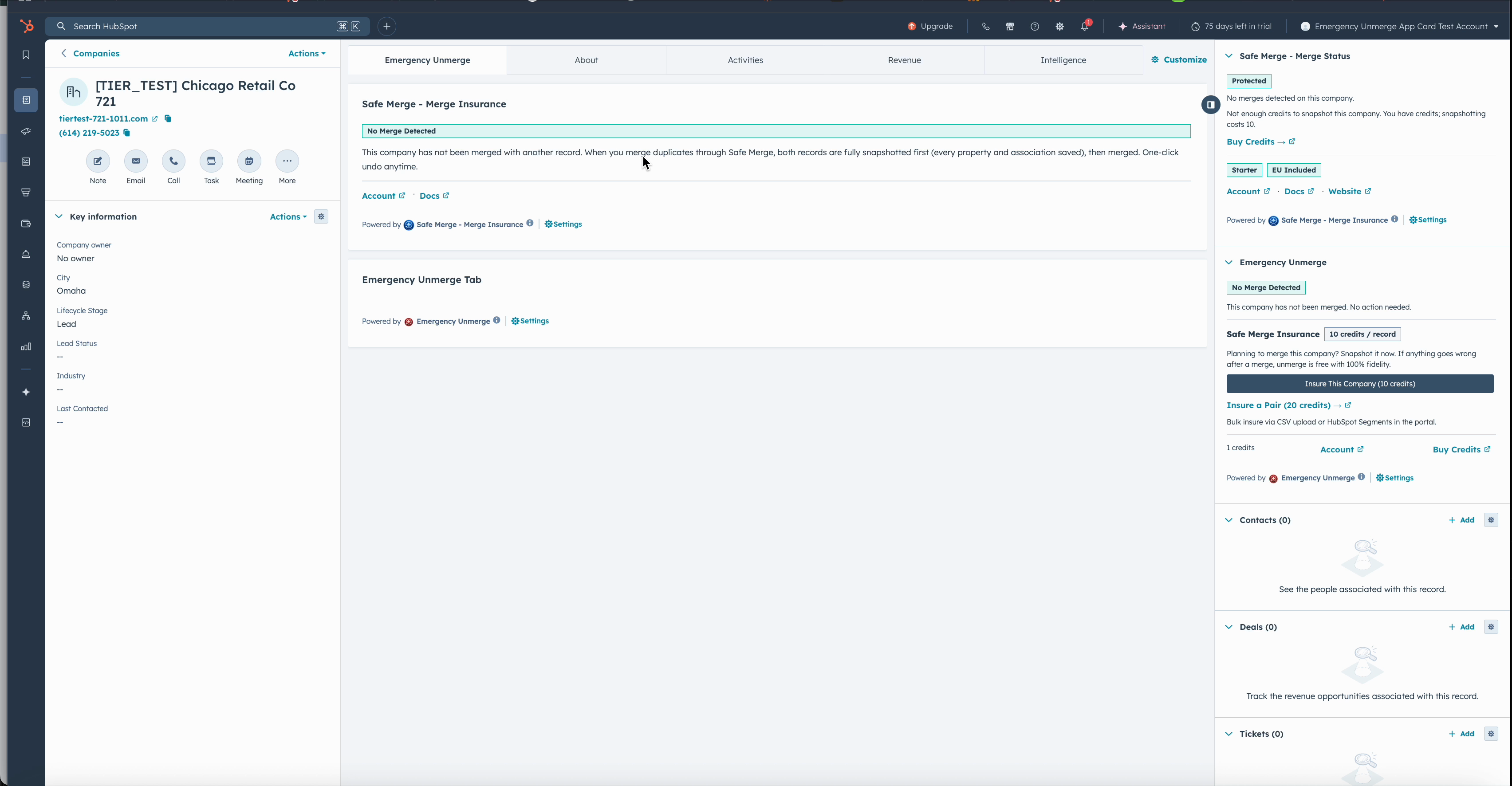
Once installed, the CRM Data Backup & Restore sidebar card appears on every contact, company, and deal record.
Approve Permissions
CRM Data Backup & Restore requests the following HubSpot scopes:
- - Read and write contacts, companies, and deals
- - Read and write schemas (for property management)
- - OAuth authentication
Why these permissions? Read access is needed to take automated backups. Write access is needed to perform one-click restores (restoring the original record). Schema access is used to understand your custom properties.
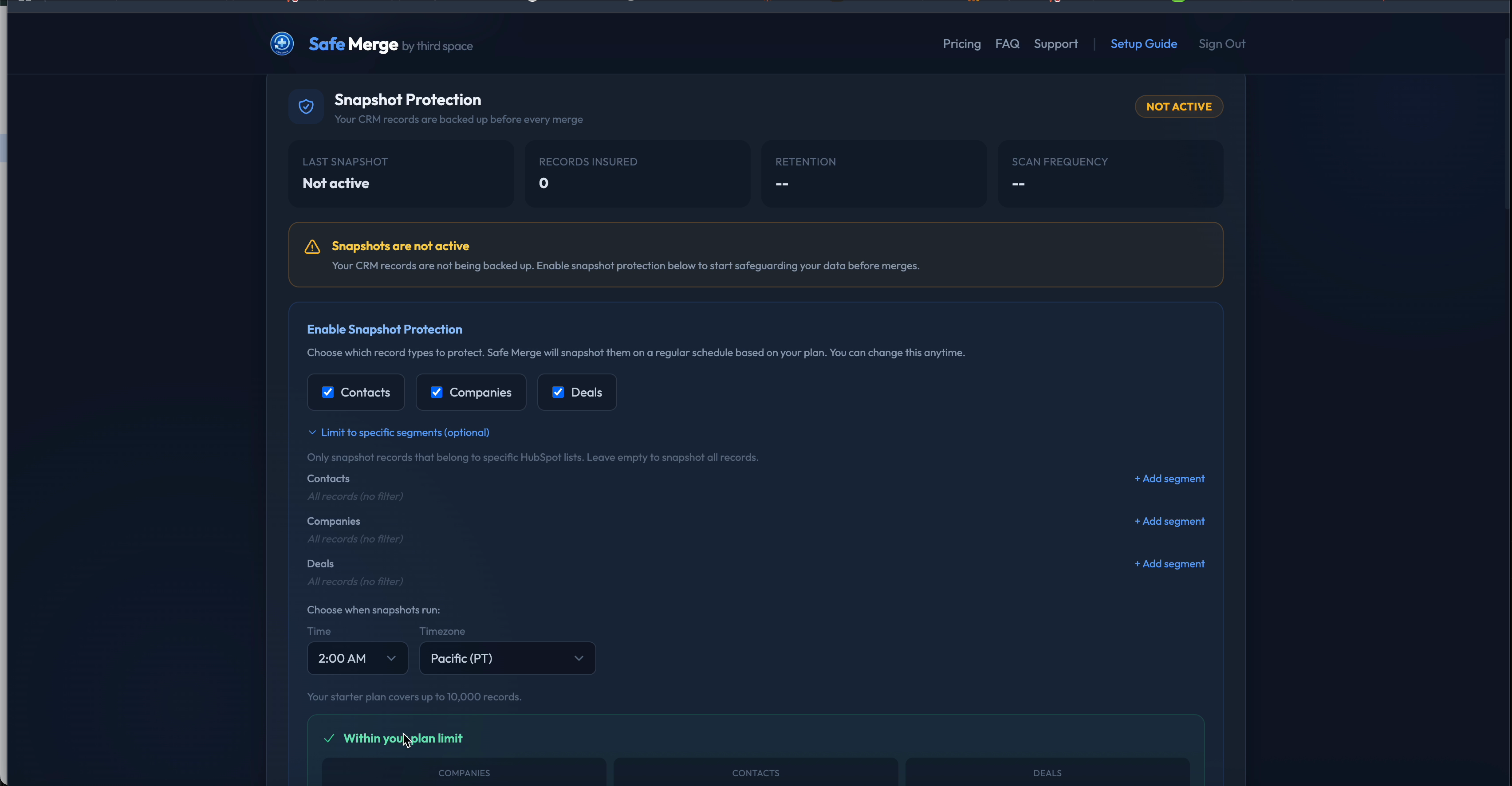
After approving permissions, configure which object types to back up and how often.
Enable Automated Backups
After installing, sign in at crmbackup.io/account, choose which object types to back up (contacts, companies, deals) and your backup time, then turn on automated backups:
- ✓ Your first backup runs at the next scheduled scan after you enable automated backups
- ✓ Duplicate detection (rolling out) will surface potential matches
- ✓ One-click restore is available for any backed-up record
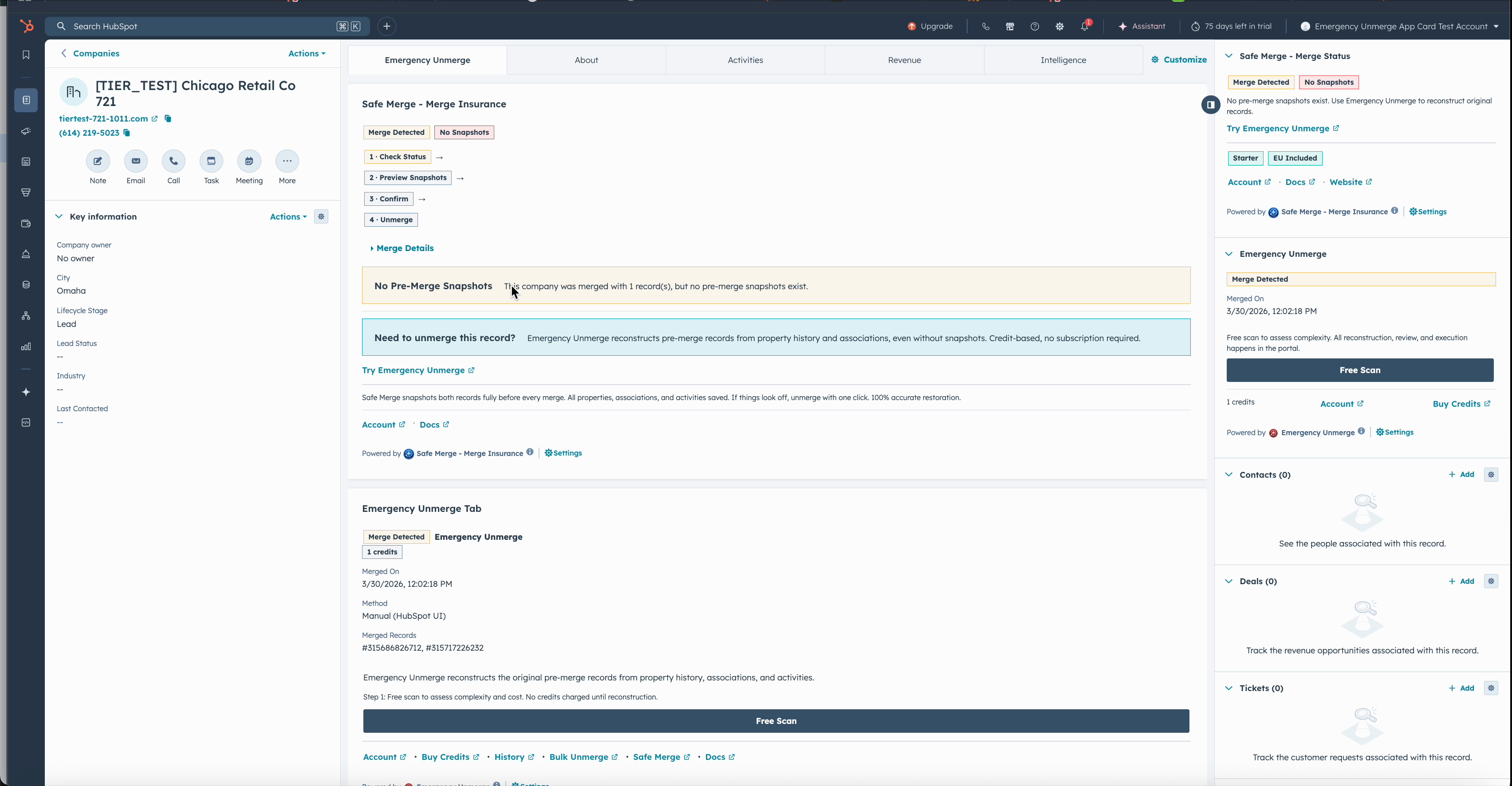
When a merge is detected, the CRM Data Backup & Restore card shows one-click restore options directly on the record.
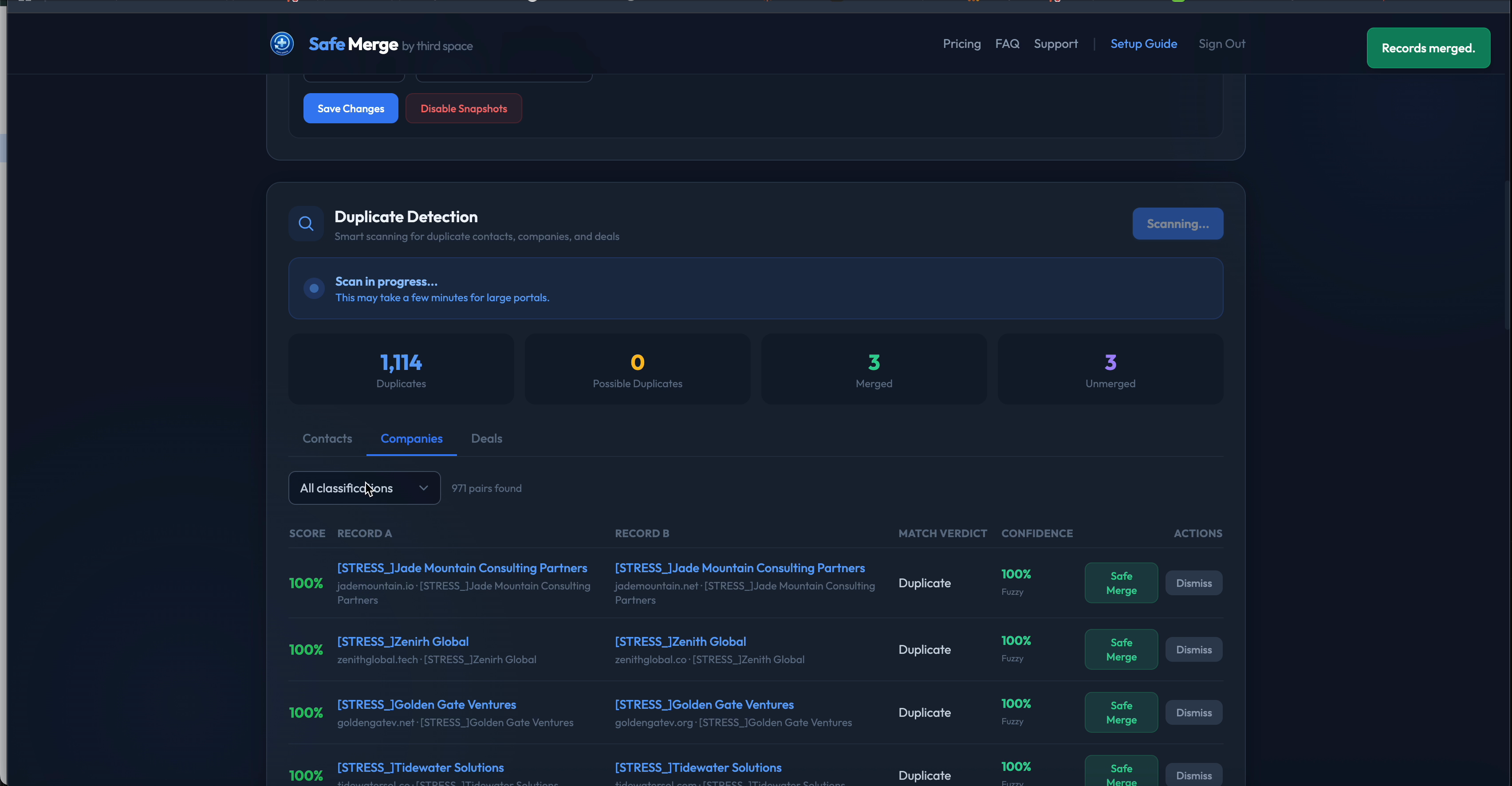
The duplicate detection dashboard identifies potential matches across your CRM with confidence scoring.
View your backup history and manage your plan at crmbackup.io/account.
Upgrade for More Protection
The Free plan covers 2,000 records with monthly automated backups. Need more? Upgrade from your account dashboard:
- - Starter ($29/mo): 10,000 records, weekly scans
- - Growth ($79/mo): 50,000 records, advanced dedup with web search
- - Pro ($179/mo): 250,000 records, daily scans
- - Enterprise ($349/mo): 1,000,000 records, 365-day retention
All paid plans include unlimited backup restores and Emergency Unmerge operations included monthly (10 on Starter, 25 on Growth, 50 on Pro, 200 on Enterprise). See full pricing.
Demo Videos
Watch CRM Data Backup & Restore in action, from install to CRM cards and workflow automation.
Demo 1: Full Portal Walkthrough
Complete tour of CRM Data Backup & Restore features across your HubSpot portal
Demo 2: Install & Setup
Step-by-step install from HubSpot Marketplace to configured automated backup protection
Demo 3: CRM Cards & Workflow
How CRM sidebar cards, workflow actions, and automated backups work together
Disconnecting & Uninstalling
To disconnect CRM Data Backup & Restore from your HubSpot account:
- Go to HubSpot Settings > Integrations > Connected Apps
- Find CRM Data Backup & Restore and click Uninstall
Uninstalling removes CRM Data Backup & Restore's access to your CRM. Your existing backups remain available for the retention period of your plan.
Need Help?
Email us at joshua@thirdspaced.com or visit our support page. We typically respond within 24 hours on business days.